|
|
|
|
UNIT 6
Adding Forms
|
|
See our entire collection of online tutorials |
|
|
|
|
|
|
|
|
A "form" is a special tool used to collect information from our web site visitors. We can survey their tastes and attitudes, test their knowledge, and have them tell us what it's like to be a kid in the 90's. |
|
|
We can even use forms to charge them money for visiting our web site. We'll be rich! Oooo... and I won't have to go to cyber-college. |
|
|
|
|
Calm down, Pixel. This is a school project and I don't think our teacher Ms. Grzlber would appreciate us ripping off people in the past. Besides, one of them might be your great great great great grandparent. |
|
|
|
|
|
|
|
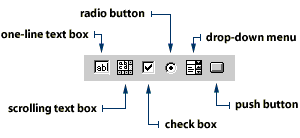
There are five different types of form fields to choose from, each suited for getting different types of information. For example, "Gender" may be best answered with a radio button while "Hobbies" could use a checklist so people can have more than one answer. |
|
|
|
|
|
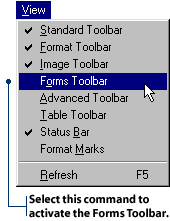
To start creating the form, let's activate the Forms Toolbar. Blip, can you do it? You're closer to the mouse. |
|
|
|
|
Each of these six buttons gives you a different way to collect information from your web site visitors.
Creating a form
A good way to start your form page is with a short sentence that invites visitors to use your form. For example:
to tell us about yourself.
|
|
|
|
|
|
|
|
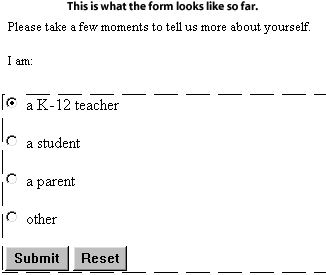
I want to know if our visitors are "Male" or "Female". So let's add some radio buttons. |
|
|
What about "independent droids"? |
|
|
|
|
They haven't been invented yet. But to make you happy, I'll add a radio button for "Other". |
|
|
To add a radio button:
2. Press the Enter key on your keyboard, then click Radio Button on the Forms Toolbar. 3. Position your cursor between the radio button and the Submit button, then press the Enter key on your keyboard.
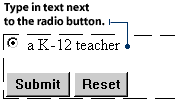
4. Position your cursor to the right of the radio button. Type a K-12 teacher, then press the Enter key on your keyboard.
5. Click Radio Button button on the Forms Toolbar again. Type a student, then press the Enter key on your keyboard. 6. Add two more radio buttons as you did above, with the following text labels: a parent and other.
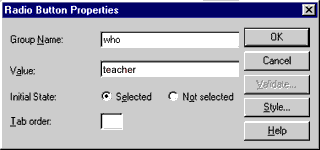
8. In the Group Name box, type the word who. A "group" refers to a group of answer choices that are associated with a question.
10. Click OK on the Radio Button Properties dialog box. 11. Repeat steps (7) through (10) for each radio button. Be sure to type the same name (who) into each Group Name box, but a different value name into each Value box (teacher, student, parent, other). Choose Not Selected as the Initial State for all of the radio buttons. This means none of the radio buttons will be selected when your visitor first sees the form.
|
|
|
Hey, let's ask kids about their favorite hobbies. You know, like time-skipping, fractal-jumping, virtual reality sculpting... |
|
|
|
|
|
|
None of those have been invented yet, Pixel! Try hobbies like drawing, swimming, shopping, and so on. |
|
|
Unlike radio buttons, you do not have to use check boxes in groups. You can use a single check box and ask a question like: "Do you want to receive e-mail updates?" You would use a group of check boxes when you want your visitors to select one or more options from a long list - like when you ask: "Which of the following answer choices apply to you?" To add a check box to your form:
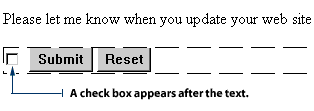
2. Click the Check Box button on the Forms Toolbar. The check box will appear at the end of your sentence.
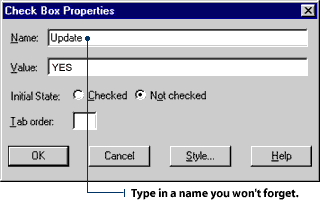
4. You will see the Check Box Properties dialog box. Type the word update in the Name box. It's best to use a name you will remember.
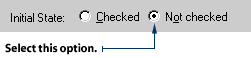
6. Select Not Checked where you see the Initial State radio buttons. This means the check box will not show a check mark when your web site visitor first sees it.
7. Click OK on the Check Box Properties dialog box. |
|
|
|
|
This check list of hobbies is taking up a lot of space. I want to make sure we leave some room for other questions. |
|
|
No problem, Blip. We can use a drop-down menu. It allows people to check multiple answers, but takes up less real estate on the computer screen. |
|
|
|
|
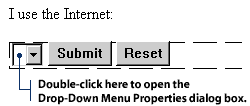
To add a drop-down menu to your form:
2. Click the Drop-Down Menu button on the Forms Toolbar. 3. Double-click the drop-down menu field that appears. You will see the Drop-Down Menu Properties dialog box.
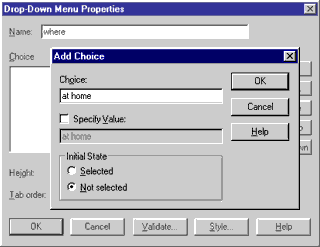
4. Type the word where into the Name box. 5. Click the Add Choice button and type at home into the Add Choice dialog box. 6. Click Selected, then click OK in the Add Choice dialog box.
8. Click the Allow multiple selections radio button so it is selected. This allows your visitor to choose more than one answer choice.
To select more than one option, hold the CTRL key on your keyboard while clicking your options.
|
|
|
|
|
|
|
|
Now, we need to create a one-line text box. |
|
|
"Take my wife...paleeez!" |
|
|
|
|
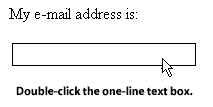
No, Cornball, that's a "one-liner" - and a bad one at that. A one-line text box lets our visitors type in a unique answer. For example, their e-mail address, or the name of their school. |
|
|
To add a one-line text box to your form:
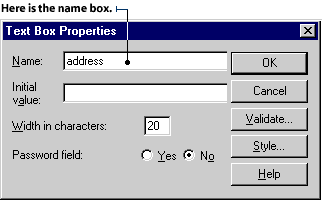
2. Double-click the one-line text box field. The One-Line Text Box Properties dialog box will appear.
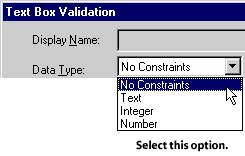
5. Select No Constraints from the Data Type drop-down box and click OK. This will allow your visitors to type in whatever they want. Other options in this drop-down box allow you to limit what kind and how much data your visitors can enter.
6. Click OK in the Text Box Properties dialog box. To change the size of the one-line text box:
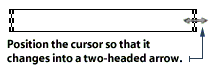
2. Position your mouse pointer over one of the dots until it turns into a two-headed arrow. Click and hold your left mouse button, then drag the dot to change the size of the box. |
|
|
Blip, the questions we've asked are all good, but we should let some individuality shine through. You know... let the kids speak their minds, find out what makes them happy or sad, or what are their goals and dreams. |
|
|
|
|
|
|
That's where the scrolling text box comes in. This type of form box allows your visitors to type longer answers. |
|
|
To add a scrolling text box to your form:
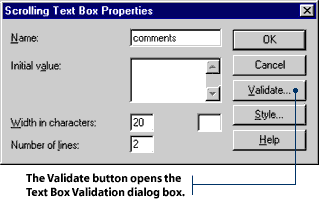
2. Click the Scrolling Text Box button on the Forms Toolbar. 3. Double-click the scrolling text box field that appears. You will see the Scrolling Text Box Properties dialog box.
4. Type the word comments into the Name box. 5. Click the Validate button in the Scrolling Text Box Properties dialog box. The Text Box Validation dialog box will appear.
6. Select No Constraints from the Data Type drop-down box and click OK. This will allow your visitors to type in whatever they want. Again, you can limit what kind and how much data your visitors will be allowed to enter. 7. Click OK in the Scrolling Text Box Properties dialog box. To change the size of your scrolling text box:
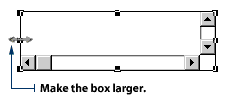
2. Position your mouse pointer over one of the dots until it turns into a two-headed arrow. Click and hold your left mouse button, then drag the dot to change the size of the box.
|
|
|
Hey, what's that "Submit" button at the bottom of the form? |
|
|
|
|
|
|
That's the button that our viewers click to send their information to us. |
|
|
Oh, but "Submit" sounds so dry. Can we change the button to read "Send It In"? That would be a lot friendlier, don't you think? |
|
|
|
|
Yessireepixel! |
|
|
You may want to change the text on these buttons to make it more relevant to your web site or form. To change the text on the Submit button:
2. Type Send it in into the Value/Label box, then click the OK button.
|
|
|
|
|
|
Okay. So we've got a form that lets our visitors enter their information, but how do we get the data back? |
|
|
|
|
|
|
FrontPage will send it to us via e-mail, or put it on a web page for us. Or, with the help of a programmer, we can put it into a database. |
|
|
NOTE: Check with your Internet Service Provider to make sure your server supports FrontPage 98. |
|
|
Let's set up our survey so the answers are e-mailed to us. That way, we'll know as soon as someone completes one. |
|
|
|
|
|
|
Good idea! As kids of the future, we love immediacy. Though, our attention spans aren't as bad as people once predicted. Right, Pixel? |
|
|
Huh? I wasn't paying attention. Just kidding. |
|
|
|
|
To have your visitors' data sent to you by e-mail:
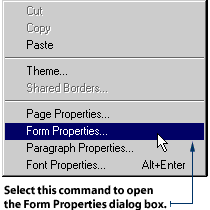
2. Select Form Properties from the pop-up menu.
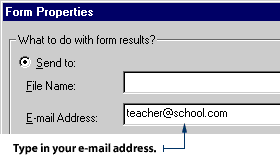
3. Click the Send To radio button to select it. 4. Delete the File Name that appears by default in the Form Properties dialog box. Leave this space blank. 5. Type your e-mail address into the E-mail Address text box, then click OK.
|
|
|
|
|
We can also have the data sent to a web page. That way, other people can see the results of the survey, too. |
|
|
Yeah, it can be like one of those bulletin boards that people used to put their messages on. How retro, Blip. |
|
|
|
|
To have your visitors' data sent to a web page:
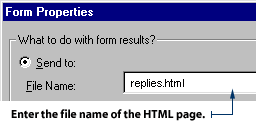
2. Select Form Properties from the pop-up menu. 3. Click the Send To radio button to select it. 4. Enter the file name of an existing HTML page in your web site, or click the Browse button to choose a page. This page is where FrontPage will send your visitors' data.
5. To receive e-mail notification when a visitor sends a response to the web page, type your e-mail address into the Form Properties dialog box.
5. Click OK in the Form Properties dialog box. NOTE: If you prefer to keep the web page private, you should send the form data to an HTML page in your _Private folder. Just click the Browse button in the Form Properties dialog box and navigate to the _Private folder. Then, select or create an HTML page there. When you send your form data to a web page located in the Private folder, the majority of your visitors will not see it. However, some technical people may be able to crack into the file and read its contents.
|
|
|
|
|
|
Using Forms John Smith: Hello? Telemarketer: Hi there, Mr. Smith. How are you today? I was just wondering if you have six hours to answer a telephone survey on bathroom products? John: Hi. I'm fine. No. Telemarketer: Well then, how about a five-minute survey on Web pages? John: Well, okay, but I'm not feeling very well right now… (sniff! cough!) Telemarketer: Goodie! Okay. Have you ever made a Web site? John: Why, yes I have, as a matter of fact. I'm actually quite interested in the topic. Telemarketer: That's great! What program did you use? John: I used FrontPage98. Telemarketer: Okay. And what was the Web site for? John: It was a local teachers' association site. You see, I'm an elementary school teacher. I'm just home sick today - got a nasty flu from one of the kids. Telemarketer: Whoa! You must get that a lot - being surrounded by so many runny little noses all winter! Anyway, please tell me more about your Web site. John: Well, it included information on current issues in education, computer courses for teachers, schedules for our upcoming meetings, and how to get a copy of our members' questionnaire. We asked them to pick up the questionnaire from their school offices and then mail them in to our postal box. Telemarketer: I see. Have you ever used forms? John: No. What's a form? Telemarketer: A form is a special tool used to collect information from your Web site visitors. There are actually five different tools you can use. You could have used a form to get your association members to fill out the questionnaire and send it back to you over the Internet. John: Are you kidding me? How does that work? Is this some kind of prank call or something? Telemarketer: Relax, John! Grab a tissue! Imagine you wanted to ask your site visitors how long they had been in the profession, what grades they taught, where they were located, and if they could send you their e-mail addresses. You could have gathered all that information by using an online form! You can use Web forms as online application forms, quizzes for the kids, volunteer sign-up lists, parent responses - just about anything you might put on a paper form. John: You don't say! Well, thanks a lot. I'm going hang up this phone and give it a try right now. I'll just wrap up in a blanket, move my orange juice and tissues over to my computer desk and take a spin at using forms. Sheesh! I'm never going to ignore a telemarketer again! Telemarketer: Wait a second, there! We've only just started my questionnaire… |